How to compress images without making them look broken
A practical guide to reducing image size for websites, social posts, product pages, and forms while keeping clean visual detail.
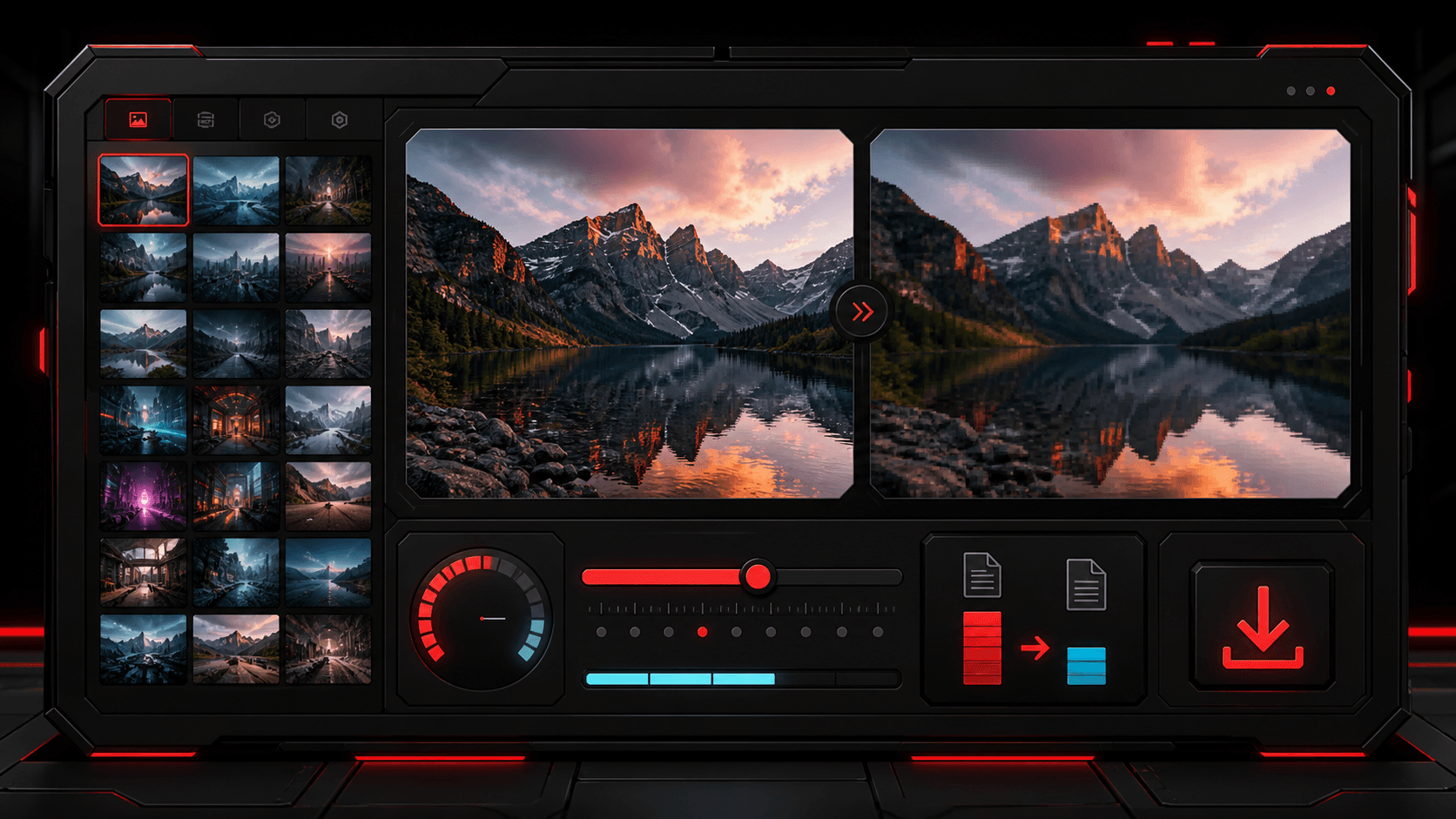
Image compression is not only about making a file smaller. The real goal is to keep the picture useful while making it faster to upload, share, and load on a page. TheFramex focuses on browser-local image compression so you can preview the result before downloading.
Start with the final use case
A product photo, blog header, profile image, form upload, and social preview do not need the same export settings. For web pages, a slightly smaller file with clean edges usually beats a huge original that slows down the page. For archives or print, keep a higher quality copy.
Use format and quality together
JPG is usually strong for photos, PNG is useful when you need transparency or sharp UI captures, and WEBP can reduce size while keeping a modern browser-friendly result. Quality around 80 to 92 often gives a balanced export for web use, but the preview should always decide.
Watch details that break first
Faces, small text, product edges, shadows, and gradients usually reveal compression problems first. If those areas look noisy or smeared, raise the quality, try WEBP, or export a larger version.
Keep originals for important work
Compression is normally a final delivery step. Keep the original image if the file matters for design, legal records, client delivery, print, or future editing. Download the compressed version as a web-ready copy.
Use the compressed file where speed matters
Compressed images are useful for landing pages, blog posts, ecommerce galleries, email attachments, dashboards, and upload portals. Smaller media makes pages feel faster and reduces friction for users on mobile networks.
Quick checklist
Questions
Does image compression reduce quality?
It can, depending on the format and quality setting. The best workflow is to preview the result and choose the smallest file that still looks clean.
Can I compress images in the browser?
Yes. TheFramex processes supported image files locally in the browser for quick preview and download.
Which format is best for a compressed website image?
WEBP or JPG is usually best for photos on websites. PNG is better when transparency or crisp interface screenshots are more important than file size.